Your mission: collect ten stars
Move the cyan player around the arena. Touch a gold star to collect it. A new star appears somewhere else; collect ten to win. This small game teaches the same four jobs you will use in bigger games: read input, change the game, draw it, and repeat.
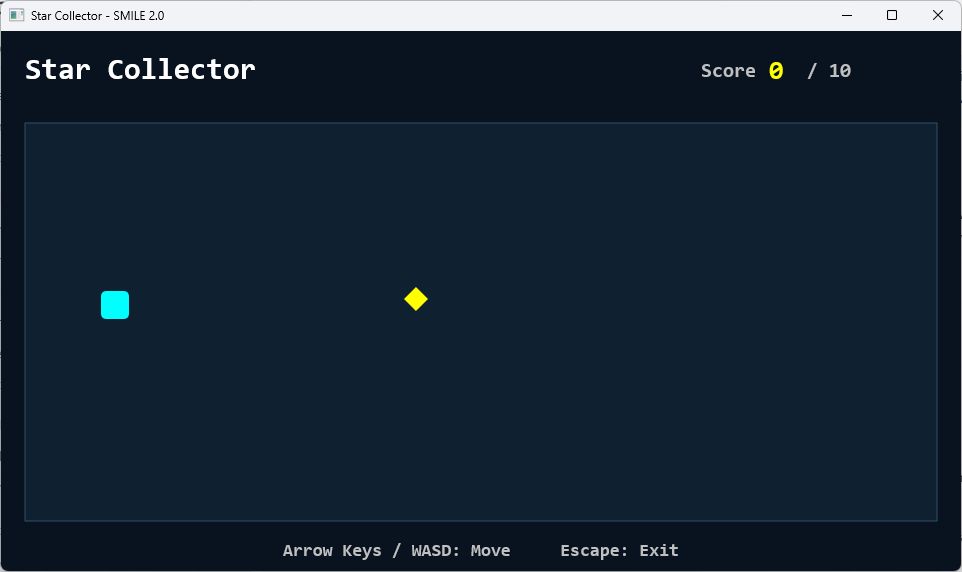
Complete Get started and try Language basics. You need the SMILE 2.0 compiler and native Windows build tools. This game needs no images, music files, or library packages.
| Control | Action |
|---|---|
| Arrow keys or W / A / S / D | Hold to move. |
| Enter | Start a fresh round after winning. |
| Escape | Exit the game. |
1. Run the complete game first
Download both files into the same folder. The .smile file contains your instructions; the .smileproj file tells the tools which source to build.
Download the game source Download the project
Open star-collector.smileproj in Visual Studio with the SMILE extension installed, then build and run it. If you use the command line, open a terminal in the folder holding both files and run:
smilec --project star-collector.smileproj --target windows-x64 -o StarCollector.exe
.\StarCollector.exe
If Windows cannot find smilec, use the full path to your installed compiler as explained in Get started. The standard SMILE startup screen appears before the arena.
Find Const PlayerSpeed = 240, change 240 to 160, save, and rebuild. Your player should move more slowly. You have changed a game rule without touching its drawing code.
2. Find the game's repeating story
The source puts declarations first, then opens the window, starts the game, and enters its main loop. The helper routines are below that loop. Start reading at Game Window; you can understand the whole story before opening each helper.
This is an excerpt from the complete file. MovePlayer, CollectStar, and DrawGame are helpers defined later in that file.
Do
    FrameTime = Timer()
    Elapsed = Max(0, Min(50, FrameTime - LastFrameTime))
    LastFrameTime = FrameTime
    Get Key Key

    If Key = KEY_ESCAPE Then
        End Program
    Else If Key = KEY_ENTER And Won = True Then
        Call ResetGame()
    End If

    If Won = False Then
        Call MovePlayer()
        Call CollectStar()
    End If

    Call DrawGame()

    Show Screen

Loop Until Game_Closed() = True
Get Key reads a queued key event, which works well for menu actions such as restarting. Key_Held, used inside MovePlayer, asks whether a key is currently down. Keep holding a movement key and the player keeps moving.
3. Give the game a memory
State means the facts the game remembers between frames. Our state is small: the player and star positions, the score, a win flag, and timing values. ResetGame puts these facts back into their starting state.
Sub ResetGame()

    PlayerX = 100
    PlayerY = 260
    PlayerXSub = PlayerX * SubpixelsPerPixel
    PlayerYSub = PlayerY * SubpixelsPerPixel
    Score = 0
    Won = False

    Call PlaceStar()

End Sub| Value | What it remembers | Who changes it? |
|---|---|---|
PlayerX, PlayerY | The player's top-left pixel position. | ResetGame and MovePlayer. |
StarX, StarY | The next collectible's top-left position. | PlaceStar. |
Score | How many stars you collected this round. | ResetGame and CollectStar. |
Won | Whether the round is finished. | ResetGame and CollectStar. |
This first game keeps its small set of shared values together so you can see them all. As your game grows, use Types, Classes, and Modules to give larger pieces their own state. Drawing should read the game state; it should not award points.
4. Turn time and keys into movement
Timer() gives time in milliseconds. We subtract the previous frame's time to learn how much time passed. Movement uses that elapsed time, so a fast computer does not automatically produce a faster player.
Distance = PlayerSpeed * Elapsed

If Key_Held(KEY_RIGHT) Or Key_Held(KEY_D) Then
    PlayerXSub = PlayerXSub + Distance
End If

PlayerXSub = Max(FieldLeft * SubpixelsPerPixel, PlayerXSub)
PlayerXSub = Min((FieldRight - PlayerSize) * SubpixelsPerPixel, PlayerXSub)
PlayerX = PlayerXSub / SubpixelsPerPixel
Why the Sub suffix? Number stores whole numbers. We keep positions in thousandths of a pixel, then divide by 1000 when drawing. At 240 pixels per second, a 16-millisecond frame moves 3,840 of these tiny units: 3.84 pixels. The leftover fraction stays in PlayerXSub for later frames.
The Max and Min lines clamp the position to the arena. Subtracting PlayerSize keeps the player's right edge inside the right wall. The complete file does the same for all four directions.
We cap elapsed time at 50 milliseconds so returning after a pause cannot send the player across the arena. If a computer continually draws fewer than 20 frames per second, this cap slows the simulation. Holding a horizontal and vertical key together also moves diagonally faster; normalizing diagonal speed is a useful later challenge.
5. Ask whether two rectangles overlap
The player is 28 by 28 pixels. The star is drawn as a gold diamond inside a 24 by 24 box. Its hitbox is that entire box, making collection a little more forgiving than the visible diamond.
Function TouchingStar() As Boolean

    Dim OverlapX As Boolean
    Dim OverlapY As Boolean
    Dim ReturnValue As Boolean

    OverlapX = PlayerX < StarX + StarSize And PlayerX + PlayerSize > StarX
    OverlapY = PlayerY < StarY + StarSize And PlayerY + PlayerSize > StarY
    ReturnValue = OverlapX And OverlapY

    Return ReturnValue

End Function
Read the first line as two questions: “Is the player's left edge before the star's right edge?” and “Is the player's right edge after the star's left edge?” The second line repeats that reasoning from top to bottom. Exact edge contact does not count here because the comparisons use < and >.
What happens if you change ReturnValue = OverlapX And OverlapY to use Or? Try it, observe the overly generous collection, then put And back.
6. Collect, win, and restart
A collision changes the score once. Before the next frame, the game either moves the star somewhere new or changes Won to True.
Sub CollectStar()

    If TouchingStar() = True Then

        Score = Score + 1

        If Score >= WinningScore Then
            Won = True
        Else
            Call PlaceStar()
        End If

    End If

End Sub
PlaceStar picks a random position inside the arena. It retries if the new star overlaps the player, so one collection cannot immediately turn into another without moving.
Sub PlaceStar()

    Do
        Random StarX From FieldLeft + 8 To FieldRight - StarSize - 8
        Random StarY From FieldTop + 8 To FieldBottom - StarSize - 8

    Loop Until TouchingStar() = False

End Sub
When Won is true, the main loop skips movement and collection but continues drawing and reading keys. That is why the victory screen stays responsive and Enter can restart it.
7. Draw a fresh picture
Clear removes the previous frame. Draw the arena first, the player and star next, and the score and messages where you want them. Show Screen presents the finished frame.
Clear Rgb(9, 18, 31)
Fill Rounded Rectangle PlayerX, PlayerY, PlayerSize, PlayerSize, 5, CYAN
Draw Text "Score" At 700, 28 Size 20 Color LIGHT_GRAY
Draw Number Score At 768, 24 Size 26 Color YELLOW
The excerpt above focuses on a few drawing commands. The complete DrawGame routine also draws the arena, collectible, instructions, and victory message. It does not contain Show Screen; the main loop presents once after all drawing finishes.
Make it yours
Easy · New look
Replace CYAN with LIGHT_GREEN. Then adjust the three numbers in Rgb(9, 18, 31) to design your background.
Medium · New goal
Change WinningScore from 10 to 20. Update the “/ 10” and victory text in DrawGame too. Which displayed labels could you generate from state instead?
Stretch · Race the clock
Remember the round's start time. Display elapsed seconds using (Timer() - StartTime) / 1000. Freeze the final time on victory and reset it on Enter.
Before moving on, check that you can move in four directions, stop at all four walls, collect exactly one point per star, win at ten, and restart with a score of zero. Explain to a friend why Show Screen belongs inside the loop.